
Heimdall is a dashboard that can be used to link to many web applications. You can read more on their site: Heimdall
I’m installing Heimdall with Docker on Portainer.
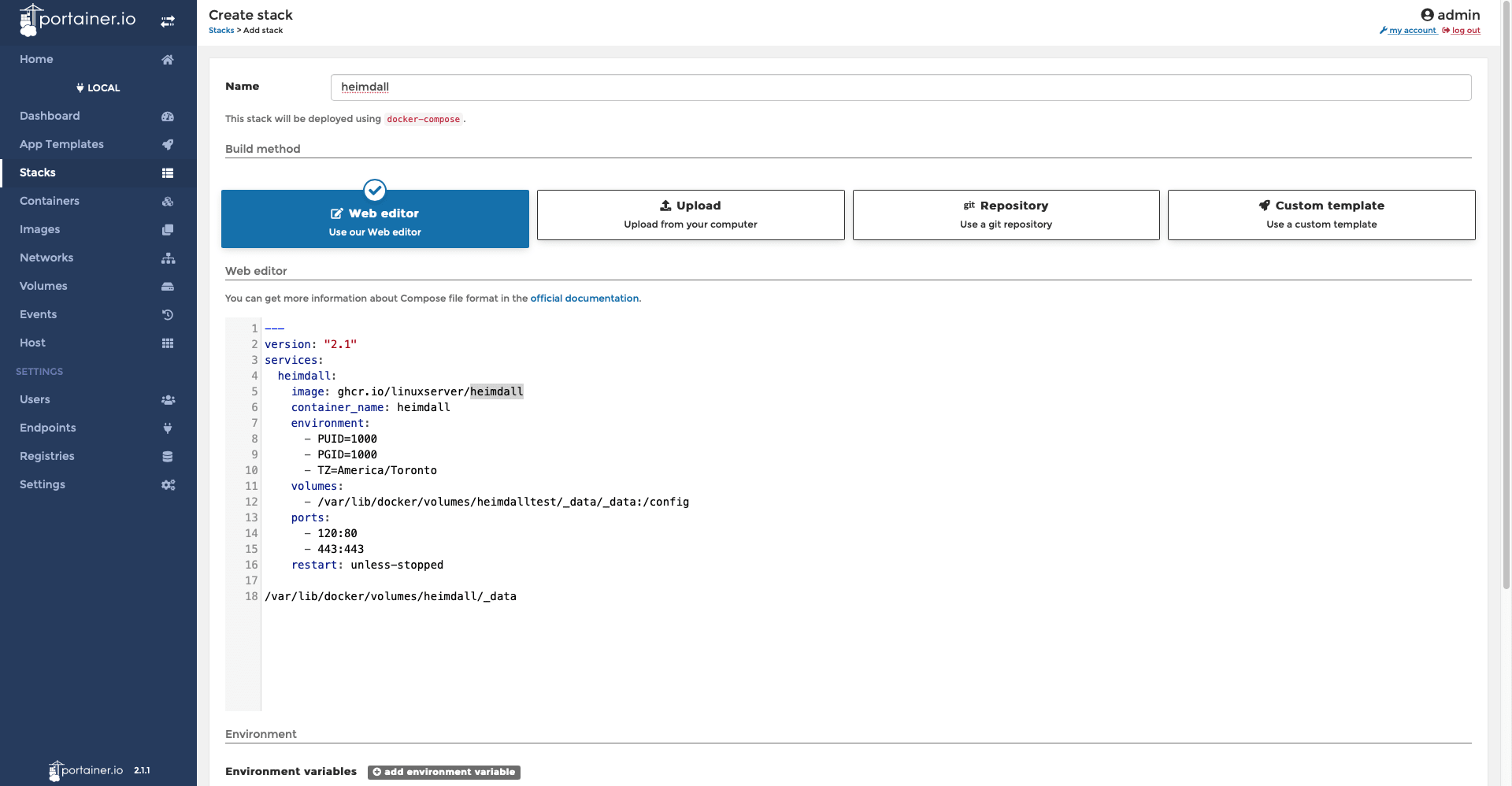
Login to your Portainer Dashboard and go to the Stacks section on the menu bar.


Click Add stack and paste in your Docker compose file
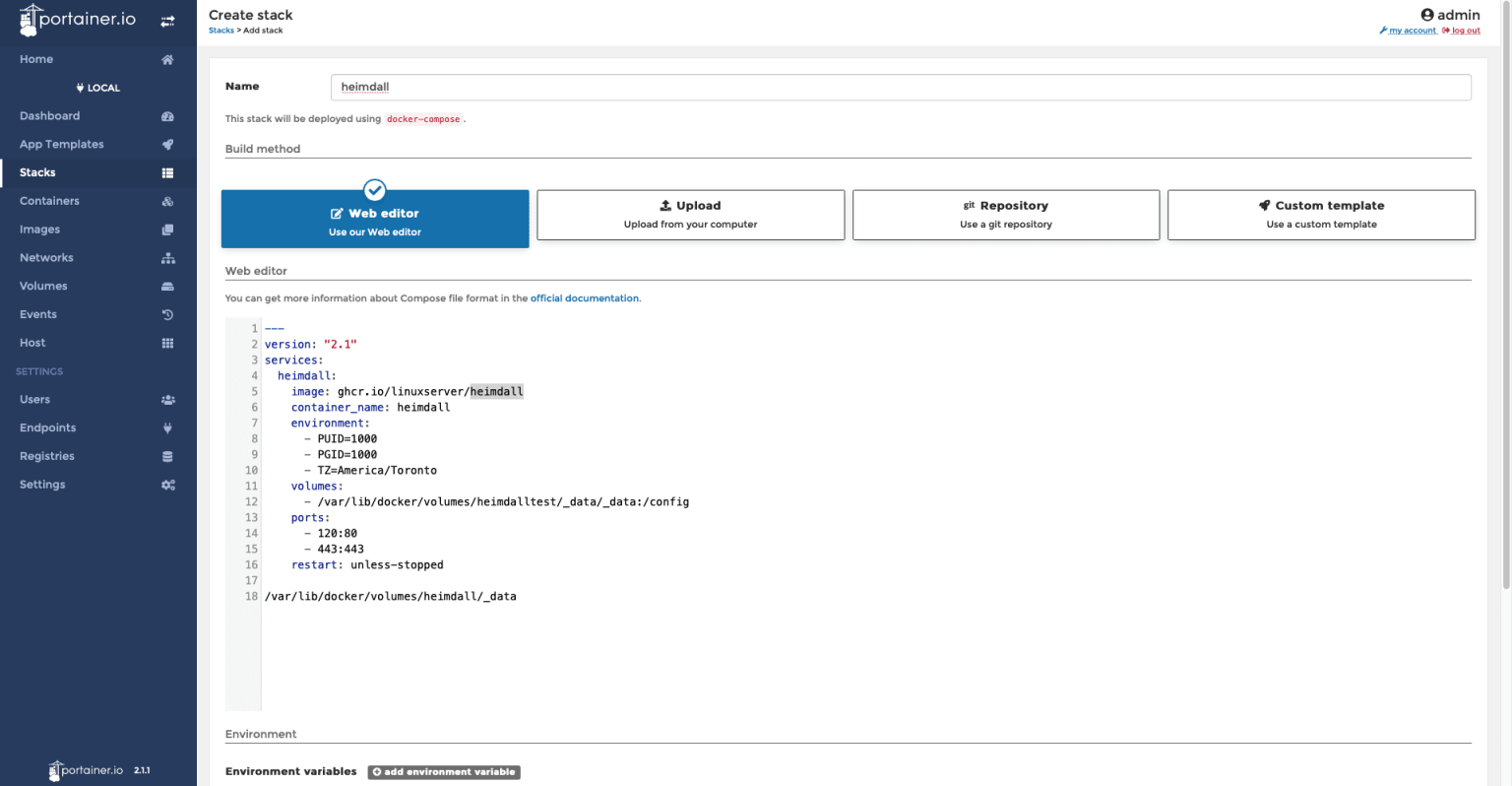

My Docker file is below:
---
version: "2.1"
services:
  heimdall:
    image: ghcr.io/linuxserver/heimdall
    container_name: heimdall
    environment:
      - PUID=1000
      - PGID=1000
      - TZ=America/Toronto
    volumes:
      - /var/lib/docker/volumes/heimdalltest/_data/_data:/config
    ports:
      - 120:80
      - 443:443
    restart: unless-stopped
/var/lib/docker/volumes/heimdall/_data
You can change port 120 to whichever port you want to access Heimdall on. You can also change the timezone to your specific region.
After making your changes you can Deploy the stack. After a while you should be able to go to the port you specified on your server’s IP to configure Heimdall.

